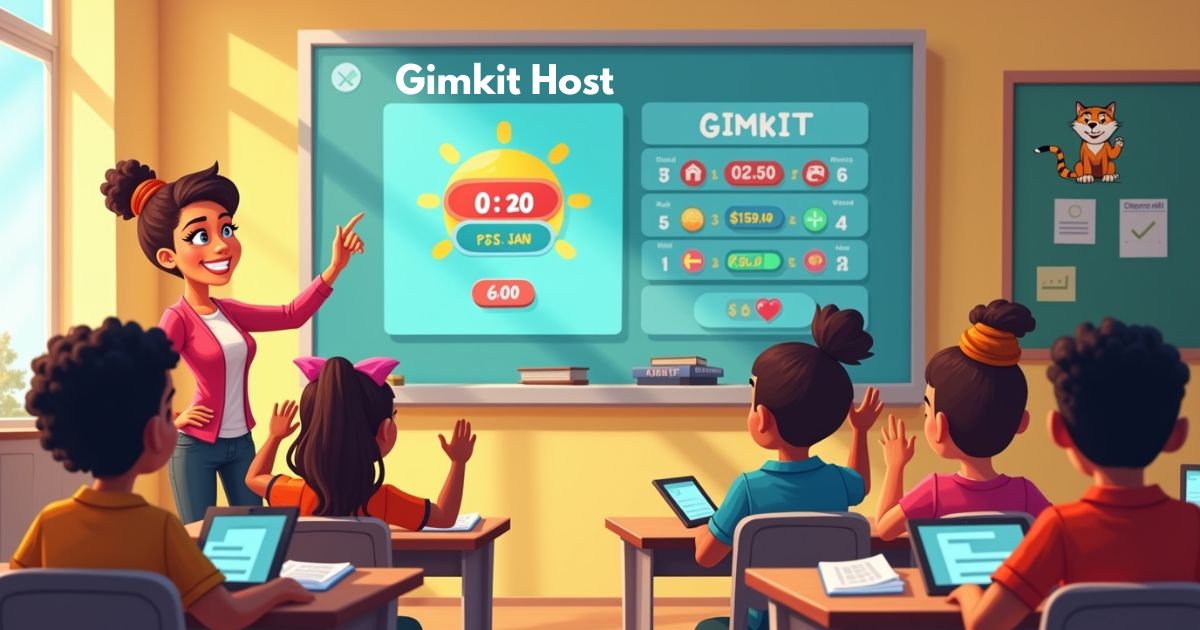
Picture this: your students are leaning forward, eyes locked on the screen, actually cheering during a review session. That’s not a fantasy that’s what happens when you become a confident Gimkit host. This guide walks you through everything, from signing up to launching your first live game session, with tips that make the whole experience smooth, fun, and genuinely effective.
How to Sign Up and Become a Gimkit Host in Minutes
Getting started with Gimkit is surprisingly painless. Head over to gimkit.com and click the “Sign Up” button. You’ll have two options: sign up with your Google account or create a new one using your email. Most teachers pick Google because it also enables Google Classroom integration right from the start fewer steps, less friction.
Once you complete the Gimkit sign up process, the platform asks a simple question: are you a student or a teacher? Choose teacher. This unlocks your Gimkit teacher account and sends you straight to your dashboard, which is where all the magic happens.
The whole thing takes about three minutes. No credit card required upfront, no complicated account verification hoops to jump through.
Picking the Right Plan for Your Hosting Needs
Gimkit keeps its pricing clean and honest. Here’s a quick breakdown:
| Plan | Price | Best For |
|---|---|---|
| Free Plan | $0/month | New teachers exploring the platform |
| Pro Plan | $4.99 monthly per teacher | Teachers who want unlimited features |
The Free Gimkit plan lets you run a limited number of live games and access a solid selection of base features. It’s a great sandbox. But if you’re serious about classroom gamification and want access to detailed student performance reports, Homework Mode, and unlimited kits, the Gimkit Pro plan is well worth the investment. At $4.99 monthly per teacher, it’s less than a cup of coffee.
Setting Up Your Profile as a Pro Host
Before you host your first game, spend five minutes customizing your profile. Add your school name, upload a photo, and set your classroom branding. Some teachers even set a school mascot leaderboard theme students genuinely love the personal touch.
Your profile also controls default game lobby settings and whether students see your name during live games. Small details. Big impact on how professional and intentional your hosting feels.
Step-by-Step: Hosting Your First Gimkit Game
Here’s where it gets exciting. Hosting a Gimkit live game isn’t complicated, but doing it well takes a little know-how. Follow these steps and you’ll run your first session with confidence.
Creating an Engaging Kit as Host
Think of a “Kit” as your quiz set it’s the content engine behind every game. From your Gimkit dashboard, click “My Kits” and then “Create a New Kit.” You’ll name it, choose a subject, and start adding questions.
Gimkit supports several question formats:
- Multiple choice questions great for quick recall
- True/false quiz format perfect for concept checks
- Open-ended questions ideal for deeper thinking
“The best kits I’ve ever used had a mix of question types. Students don’t get bored when the format keeps shifting.” Ms. Lopez, 8th Grade Science Teacher
A few smart tips when building your kit:
- Keep questions focused. One concept per question works best.
- Use Power-ups in Gimkit as motivators students earn them with correct answers and use them strategically.
- Aim for 20–30 questions for a standard 30-minute session.
- Include a Question Bomb question to shake up the leaderboard mid-game. Students love the chaos.
Pro tip: Import questions directly if you already have them in a spreadsheet. It saves enormous time and makes creating a Gimkit quiz feel effortless.
Launching and Running the Game Smoothly
Once your kit is ready, click “Host” from your My Kits page. You’ll land on the host control panel, where you choose your game mode. Options include classic, team mode, and a handful of creative formats depending on your plan.
Select your settings:
- Timer settings decide how long students have per question
- Point system rewards customize how many points correct answers earn
- Custom game themes pick a visual theme that fits your class energy
Then click “Start Game.” Gimkit generates a Gimkit join code a short numeric code your students enter at gimkit.com/join. Share it on your projector or type it in the chat if you’re running a virtual session.
Watch the game lobby fill up. Once everyone’s in, hit “Begin.” The real-time competition starts immediately, and your leaderboard tracking updates live for everyone to see.
Top Tips to Make Your Gimkit Hosting Unforgettable
Running a technically functional game is one thing. Making it memorable is another. Here’s what separates good Gimkit hosts from great ones.
Front-load your energy. The first 60 seconds of a live session set the tone. Stand up, narrate the leaderboard, call out early leaders by name. Mr. Smith from Lincoln Middle School in Ohio said his class energy doubled once he started doing live play-by-play commentary. Students love being seen.
Pause at the midpoint. Halfway through the game, briefly pause and ask: “What strategy are you using right now?” This metacognitive moment sneaks active learning strategies into what feels like pure fun.
Use Homework Mode strategically. Not every review needs to be live. Assign kits in Homework Mode the night before a unit test. Students work at their own pace and you get student progress analytics without running a single live game.
Celebrate creatively. Don’t just announce the winner. Recognize the “most improved,” the student who attempted every question, the one who used the fewest power-ups. Personalized learning sessions feel more meaningful when the recognition goes beyond first place.
Avoiding Common Hosting Pitfalls
Even experienced teachers hit bumps. Here’s what to watch for and how to sidestep it.
| Common Issue | Fix |
|---|---|
| Students can’t connect | Check Wi-Fi; best browser for Gimkit is Chrome |
| Game runs too slow | Reduce question timer; close unused browser tabs |
| Join code errors | Refresh the host screen and generate a new session |
| Disengaged students | Switch game modes mid-unit to rebuild novelty |
| Laggy leaderboard | Limit simultaneous logins; use school-grade Wi-Fi |
Wi-Fi troubleshooting is the number one pain point in live classroom quizzes. Always test your connection before students arrive. If the school network is congested, consider having students use mobile data as a backup.
Why Being a Gimkit Host Transforms Your Teaching
This isn’t just about making class more entertaining. The ripple effects of educational game hosting reach into your data, your prep time, and even your own enjoyment of teaching.
Boost Student Motivation Like Never Before
The research is clear. Game-based learning taps into intrinsic motivation in ways traditional worksheets simply don’t. When students compete in a real-time competition with a visible leaderboard, their engagement spikes. Dopamine does the work you used to fight for.
A study from the University of Colorado found that gamified learning environments can increase student retention by up to 40% compared to conventional review methods. That’s not a small number. That’s the difference between students remembering material on Friday versus forgetting it by Tuesday.
Classroom participation boost happens naturally when the stakes feel real but low. No one’s being graded on their Gimkit score so students take risks, try harder, and stay focused longer.
Cut Prep Time with Smart Tools
The Gimkit dashboard isn’t just a launcher. It’s a time-saving machine. Once you create a kit, you can reuse it across multiple classes, edit individual questions without rebuilding from scratch, and clone it for different grade levels.
The custom quiz builder also lets you build questions in batches. Spend 20 minutes on Sunday and you’ve got a week’s worth of classroom review games ready to go. Compare that to printing, grading, and filing paper quizzes the time savings are substantial.
Google Classroom integration means you can assign Homework Mode directly through your existing LMS. No extra login, no copy-pasting join links, no confusion.
Unlock Data Insights for Real Growth
Here’s where Gimkit quietly outperforms many competing EdTech tools 2025 offerings. After every session, the Reports tab gives you a detailed breakdown of student performance question by question, student by student.
You can:
- Identify which questions most students missed (re-teach those concepts)
- Track individual improvement over multiple sessions
- Export student data for use in your gradebook or parent conferences
- Spot students who might need differentiated support before the test
This turns every game into a formative assessment tool valuable data dressed up as fun. That’s the real power of student progress tracking inside Gimkit.
Make Teaching Fun for You
Let’s be honest. Teaching is exhausting. The prep, the grading, the constant effort to keep 30 teenagers engaged it wears on you. But something shifts when you host a Gimkit game. The energy in the room changes. Students lean in. And you get to be the architect of that experience.
Making lessons fun isn’t a concession. It’s a strategy. The most effective teachers aren’t the most serious they’re the ones who’ve figured out how to make learning feel like something worth showing up for.
FAQ’s
How to host a game in Gimkit as a student?
Students can’t host official live games on a standard account that’s a Gimkit teacher account privilege. However, students can create kits and share them informally if they have an account. For actual live game session management, a teacher must log in and launch the session. If your school uses a special student-hosting setup, check with your teacher or IT admin about specific account permissions.
What is the secret code in Gimkit tag?
In Gimkit’s Tag mode, the “secret code” refers to a hidden mechanic where tagged players receive a scrambled code they must decode to rejoin the game. It’s part of the point system rewards mechanic designed to keep eliminated players engaged rather than sitting out. The actual code changes each session and appears on the player’s screen after they get tagged.
How do teachers sign up for Gimkit?
Head to gimkit.com, click “Sign Up,” and select “I’m a teacher.” You can register using Google or with a standard email. The Gimkit sign up process takes under five minutes. After verifying your email, you’ll land directly on the teacher dashboard with access to your first kit-building tools. The Free Plan activates automatically no payment info required.
Can students create their own Gimkit games?
Yes and no. Students with accounts can build kits collections of questions using the same create Gimkit kit tools teachers use. But they can’t host live classroom sessions the way a Gimkit teacher can. For student-driven review, teachers often let students build the kit as a collaborative activity, then the teacher hosts the live game. It’s a clever way to deepen engagement while keeping safe classroom tech tools standards in place.
Conclusion
Becoming a confident Gimkit host doesn’t require technical expertise or hours of setup. It requires curiosity, a decent kit, and the willingness to let your classroom get a little loud. The platform handles the heavy lifting the live game session, the leaderboard, the real-time student feedback while you focus on what you do best: teaching.
Whether you’re comparing Gimkit vs Kahoot, looking for the best quiz platform for teachers, or just trying to survive another review day before finals, Gimkit delivers. It’s one of the most practical EdTech platforms 2025 has to offer, and the Gimkit host tutorial you just read proves it doesn’t have to be complicated.
Sign up, build your first kit, and host your first game this week. Your students and your future self will thank you.
Ready to get started? Visit gimkit.com and sign up for free today.
